If you charge for meetings, sessions, or appointments, how do you handle payments?
When you’re running your own business, you don’t have hours to spend on admin work around payments. That’s why Calendly integrates with Stripe and PayPal so clients can pay upfront when they book with you. No extra steps or tools required; just a simpler way to get paid.
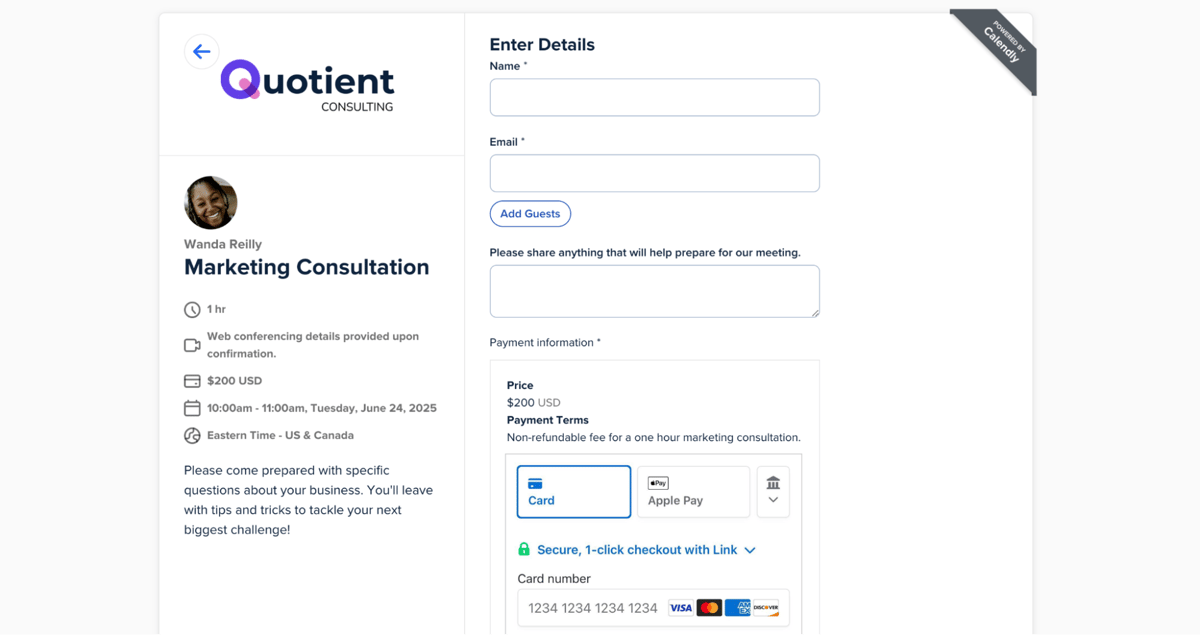
When you add payments to your Calendly booking page, you can:
- Simplify your workflow: Your clients book and pay in one smooth experience, and you can ditch extra payment links and invoices. Calendly automatically sends out booking and payment confirmations.
- Protect your time and reduce no-shows: When a meeting is paid for in advance, invitees are more likely to show up. Plus no more chasing invoices or dealing with last-minute cancellations.
- Offer clients more flexibility: Accept multiple payment methods, including major credit and debit cards, Apple Pay, Google Pay, instant bank payments via Link, and “buy now, pay later” options with Klarna and Affirm.
- Add a new revenue stream: If you’re not already charging for your time, consider creating a paid Event Type for consultations, coaching sessions, or just “pick your brain” chats.
In this article, we’ll walk through some examples of paid meetings, plus a step-by-step guide to adding payments to your Event Types.
Note: Payment integrations are available on all paid Calendly plans.
What kind of meetings and appointments can you charge for?
Thousands of entrepreneurs, business owners, consultants, coaches, and service providers use Calendly to charge for their time. Here are a few examples:
Sell coaching, consulting, and advising sessions
Coaches and consultants use Calendly’s payment integrations to easily book and charge for client sessions.
Calendly saves me a ridiculous amount of back-and-forth. I love that I can bill for coaching, and that it syncs with my GCal so I never miss a call.


Financial advisors, consultants, and lawyers — like Immigration Attorney Daniel Larson — also use Calendly to simplify bookings and payments. “I've just started using these tools, and I can't believe I didn't jump on this sooner,” Daniel shared on LinkedIn. “Scheduling and payments? So easy now!”
Pro tip: Offer multi-session bundles
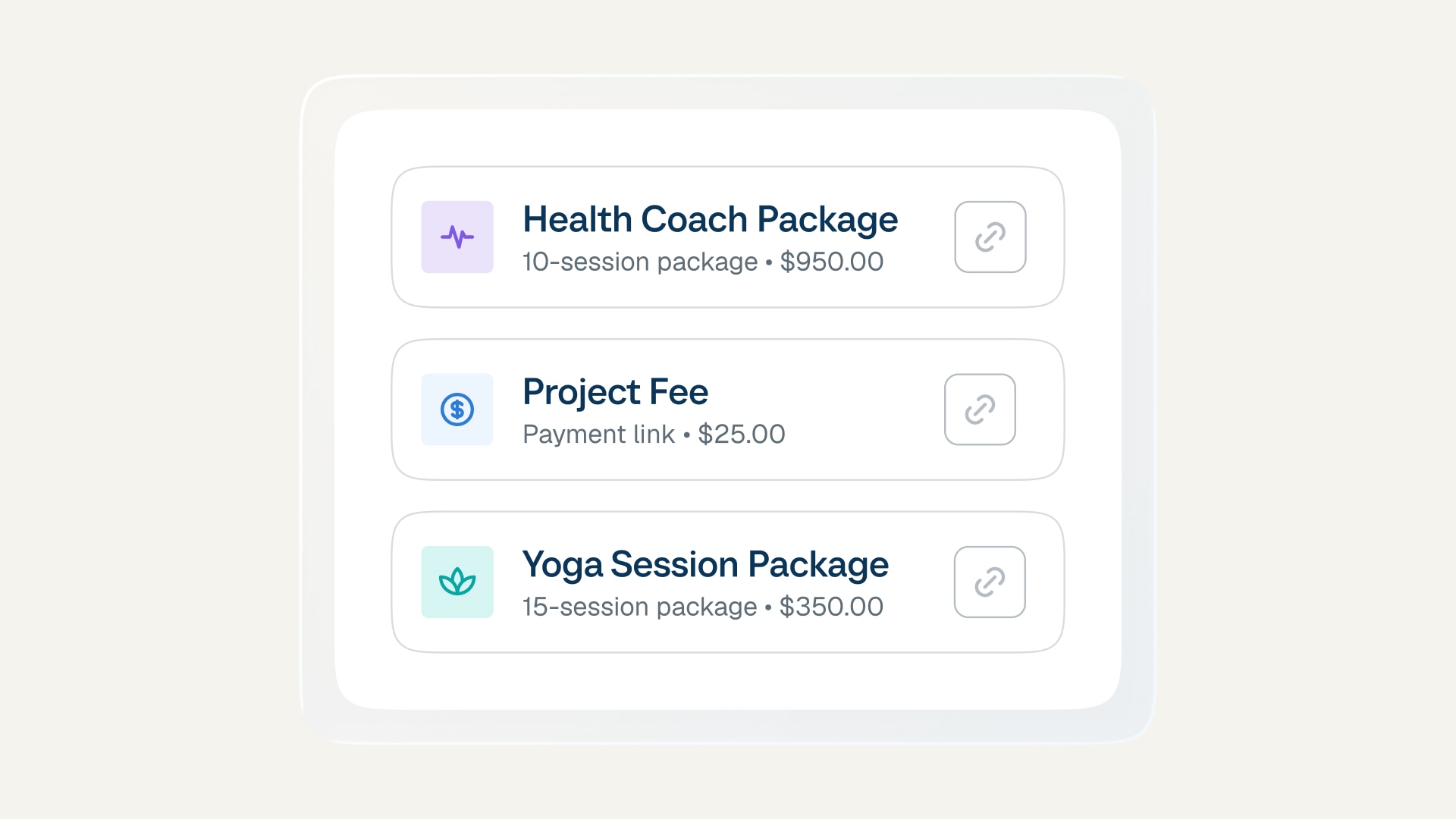
If you meet with clients over multiple coaching sessions or consulting check-ins, consider selling meeting packages. Clients purchase multiple sessions upfront and schedule them over time. You can manage it all from Calendly — no need for separate tools or spreadsheets for invoicing, tracking, and scheduling. Learn more.
Collect deposits ahead of service appointments
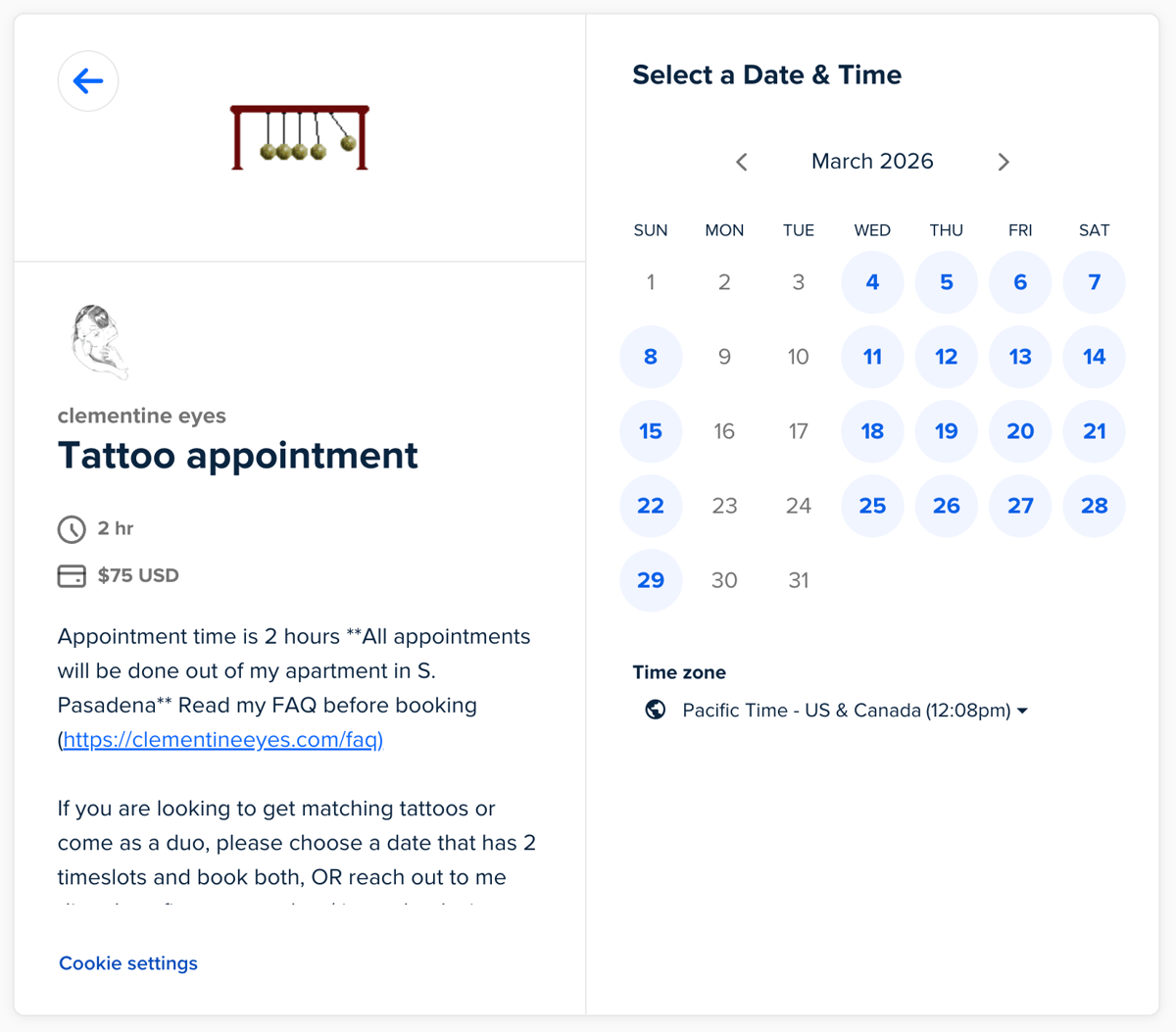
Service providers like tattoo artists, estheticians, and stylists also use Calendly to schedule and collect deposits for appointments.
For example, tattoo artist Waverly collects a $75 deposit for two-hour tattoo sessions booked through her Calendly. When her books open, she adds her Calendly link to her Instagram bio, so interested clients can book and pay in just a few clicks.
Turn “can I pick your brain?” into a paid meeting
Charging a consulting rate for a brain-picking session or intro call is a simple way to get paid for the expertise you’ve spent years building.
“I have a Calendly link with an hourly consulting rate built in via Stripe,” says Content Strategist Rachel Bicha. “When someone wants to pick my brain, they can book 30 mins or an hour with the associated consulting fee and pay when they book their calendar invite. Super simple.”

The Guide to Handling “Pick Your Brain” Requests
Successful founders, entrepreneurs, consultants, and coaches share how they tackle these requests, plus tips for setting boundaries around — and getting paid for — your time.
How to add payments to your Calendly meetings
Connect Stripe and/or PayPal
Calendly integrates with Stripe and PayPal to process payments. You’ll need to connect with at least one of the providers to accept payments on your booking page. Here’s how:
- Log into Calendly and go to the Integrations page
- Find and select Stripe or PayPal
- Connect your Stripe or PayPal account or create a new one
Add payments to an existing Event Type
If you want to add payments to the booking page for an existing Event Type:
- From your Scheduling page, click on any of your Event Types
- In the Event Type editor, click More options
- Expand the Payment section
- Toggle on Require payment to book this meeting
- Select Stripe or PayPal as your payment processor
- Set your price and currency
- Add additional payment options including coupon codes (Stripe only) or payment terms (like cancellation policies)
- Select Save changes
-1.png)
Set up a new paid meeting
To create a new Event Type with payments added to the booking page:
- Go to your Scheduling page
- Select the + Create button and choose a meeting type
- In the Event Type editor on the right-hand side, customize your event details, including name, duration, and location
- Select More options to open additional settings
- Expand the Payment section
- Toggle on Require payment to book this meeting
- Select Stripe or PayPal as your payment processor
- Set your price and currency
- Add additional payment options including coupon codes (Stripe only) or payment terms (like cancellation policies)
- Select Save changes
Refunds, tax collection, and enforcement of cancellation policies are not managed by Calendly.
Visit our Help Center for a full step-by-step tutorial and FAQs for Stripe and PayPal.
Tips and tricks to make the most of paid meetings
Once you add payments to your Event Type, here are a few ways to book more meetings and get paid sooner:
- Offer discounts: Create unique coupon codes to attract new clients, reward loyal customers, or run seasonal promotions (Stripe only).
- Let clients choose how they pay: Accept multiple payment methods, including credit and debit cards, Apple Pay, Google Pay, and more (Stripe only).
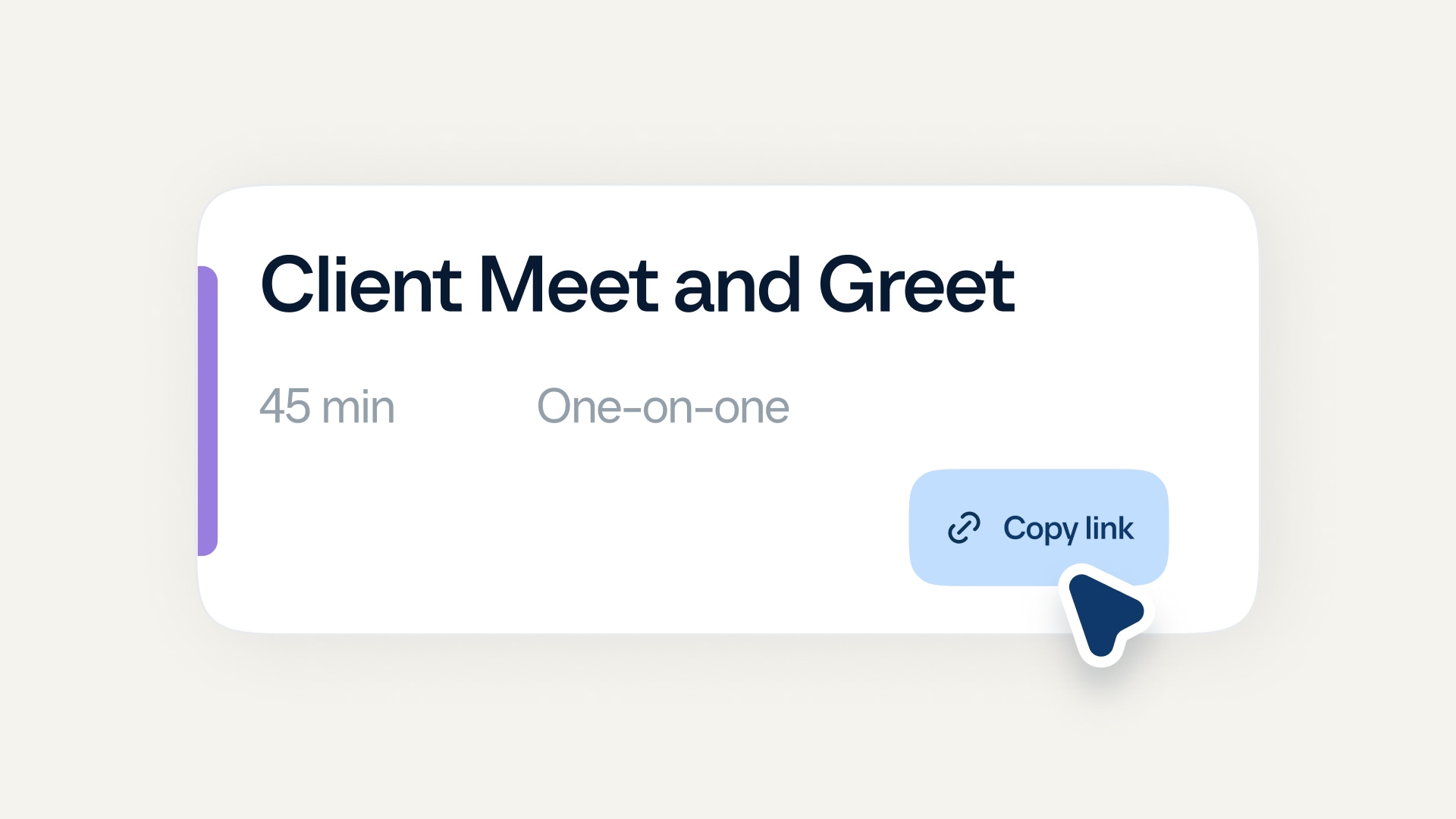
- Share your booking page wherever clients find you: Add your link to your email signature, website, or social bios so people can book (and pay) the moment they’re ready.
- Explain the value in your Event Type description: Clearly outline what clients will get out of the session, so the price feels aligned with the value.
- Include your rescheduling and cancellation policy: Add a clear, friendly policy to reassure invitees and remove last-minute booking doubts.
- Get paid for more than just meetings: If you need to request payment for something outside of a booking — like a project fee or add-on service — create shareable payment links directly in Calendly.
Calendly gave me structure. PayPal gave me commitment. Together, they’ve helped me build a scheduling experience that feels as polished and intentional as my time management coaching.


Start accepting payments with Calendly
Spend less time managing payments, get paid sooner, and make it easier for clients to pay you. Connect Stripe or PayPal to your Calendly account and add payments to your booking page in just a few clicks.
Get started with Calendly
Ready to make meetings easier than ever?