Make Every Meeting Count, Before, During, and After
Most meetings aren't won or lost in the meeting itself. Success happens in the prep beforehand and the follow-through after. Without a system for both ends, context gets forgotten, action items go missing, and follow-ups stall out.
Calendly's AI gives you a system for the whole arc. You walk in prepared, capture what matters in the moment, and turn each conversation into clear next steps without doing the heavy lifting yourself.
How this works (and what you'll set up with this guide)
Think of this as AI working across the full meeting lifecycle:
- Before — Meeting Prep and the AI Assistant get you up to speed
- During — Notetaker captures what's said, decided, and committed
- After — Smart Compose, auto-shared recaps, and Automations carry the conversation forward
Together, they create a loop where each meeting ends with clear next steps, those steps reach the people who need them, and the context carries cleanly into the next conversation.
Calendly features you'll use
Step 1: Turn on Notetaker
Notetaker is the foundation. It powers the capture during your meeting and feeds the AI features around it — Meeting Prep pulls from past Notetaker recaps, Smart Compose drafts from your last conversation, and the AI Assistant searches across them. Turn it on once and the rest of this guide gets a lot easier.
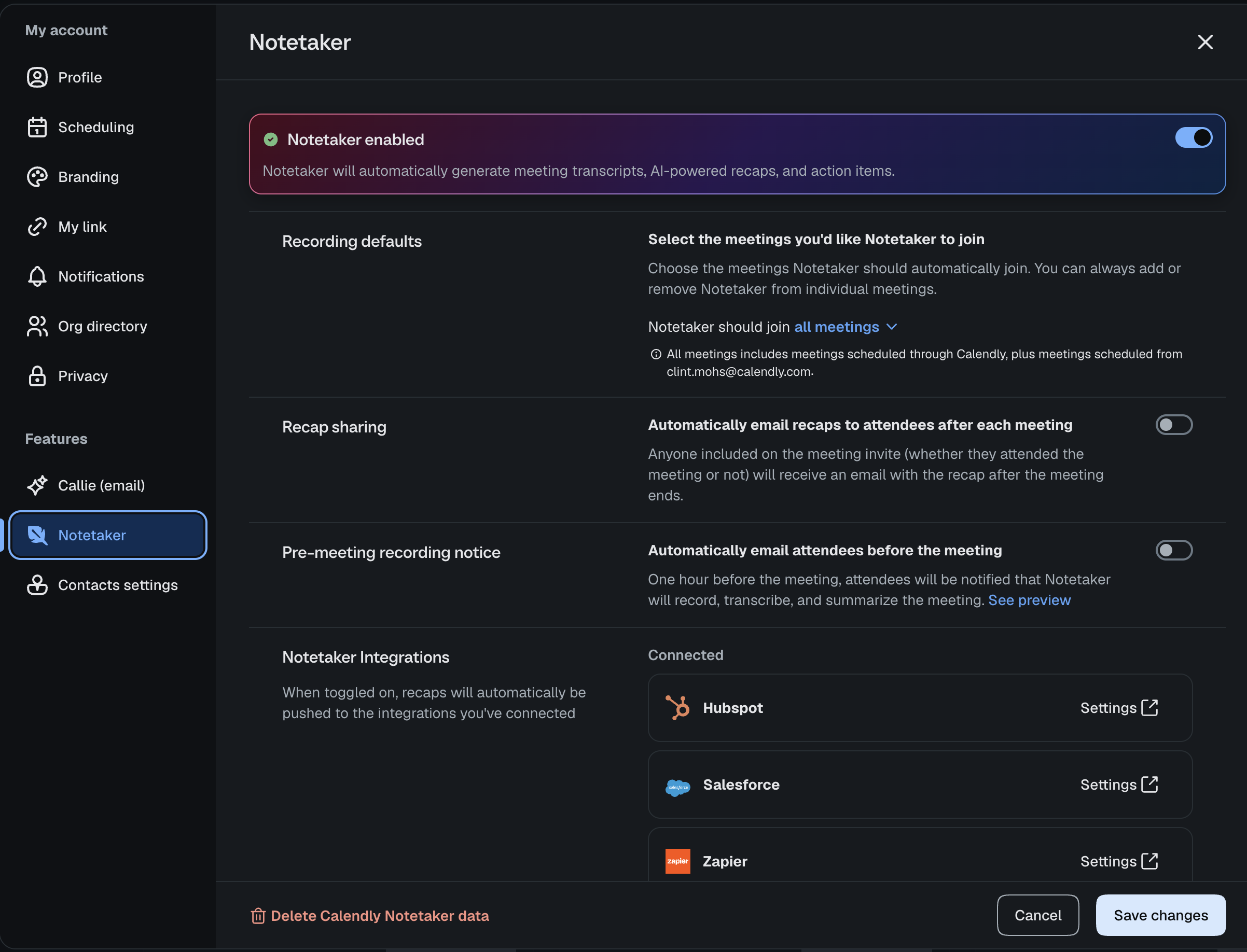
Head to Settings → Features → Notetaker. From there:
- Turn Notetaker on for your account
- Choose which meetings it joins — all of them, or specific Event Types
- Review your recording and consent settings
Step 2: Walk into every meeting prepared
Stop spending the first five minutes of a meeting trying to remember where you left off. Ask Callie can give you an AI-generated brief before each conversation, and lets you ask specific questions about past meetings on demand.
Get meeting briefs before each meeting
Before a meeting begins, Ask Callie to pull a brief together. It will draw on and surface:
- Past conversations with the same people
- Relevant action items and commitments still open
- Context worth reviewing before you join
Skim it before you join and you'll walk in already knowing where to pick up.
Use Callie for anything you need to look up
When you need something more specific than the prep brief — "what did we promise this client in March?", "did we ever settle on a timeline?" — Ask Callie searches across your past meetings and gives you a grounded answer with the relevant recap linked.
A few ways to use it:
- Prep for a meeting on a topic you haven't touched in months
- Find a specific commitment you made and need to follow through on
- Pull together context across multiple conversations with the same person
Callie lives in the Ask Callie button within the global header, so you can ask it a question from anywhere in Calendly.
Step 3: Let Notetaker capture what matters in the meeting
Stop splitting your attention between the conversation and your notes. With Notetaker on, you can focus on the person in front of you and trust that the capture is happening.
While the meeting is in progress, Notetaker:
- Records and transcribes the conversation
- Surfaces themes and key decisions as they're discussed
- Captures action items in real time
You don't need to do anything mid-meeting, but if you want to make sure something specific is captured, it helps to say it explicitly. "Let's commit to a draft by Friday" reads cleanly in a recap. "I'll get back to you on that" doesn't.
Step 4: Review your recap and lock in next steps
Turn the raw conversation into committed direction. The recap does the heavy lifting; your job is a quick pass to confirm what matters.
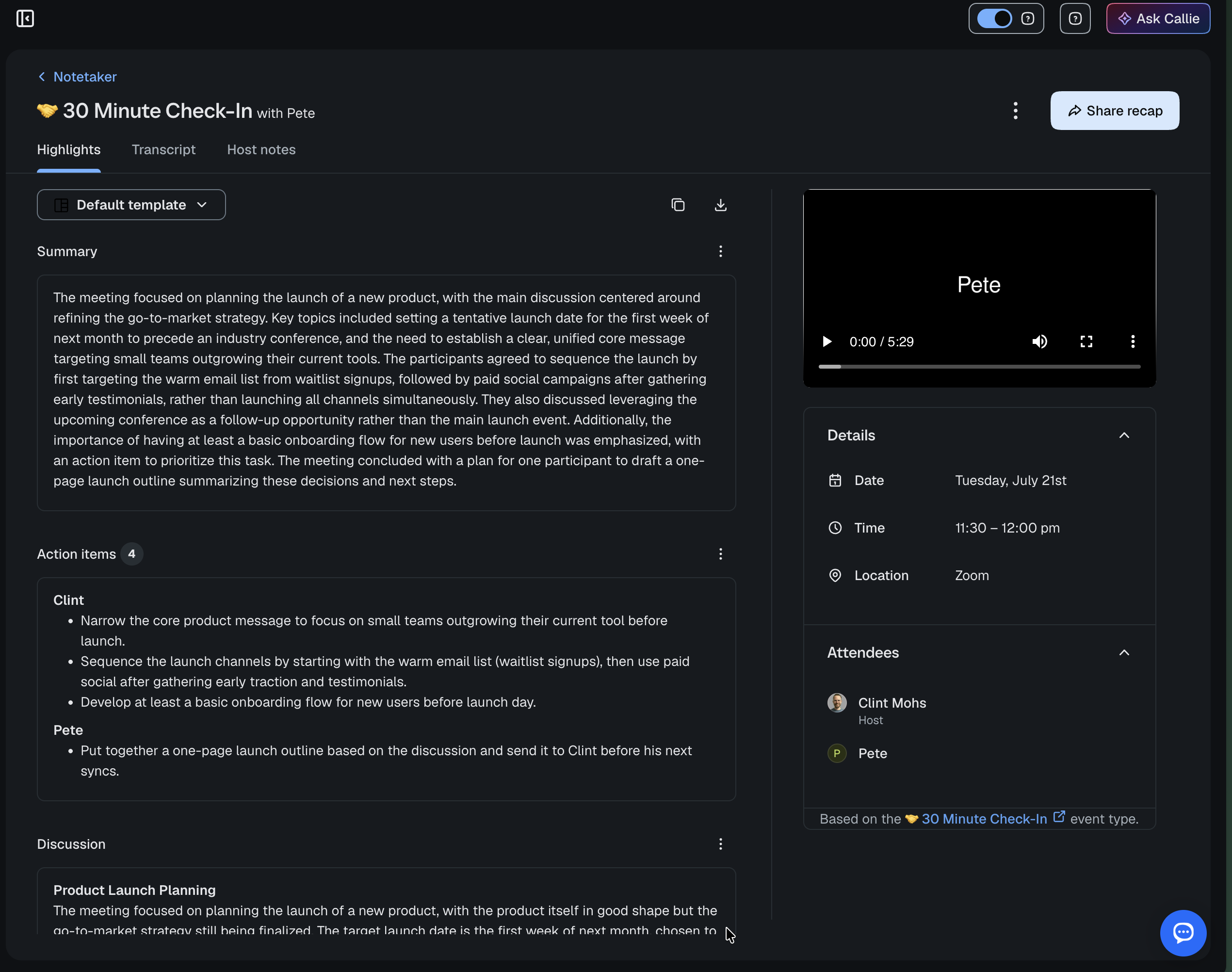
After each meeting, you'll get:
- A structured summary of what was discussed
- Key discussion points
- Action items with owners (where Notetaker could infer them)
- A full searchable transcript
Spend two minutes after the meeting to:
- Confirm or refine action items
- Adjust anything Notetaker misheard or miscategorized
- Identify the single next step worth following up on
Step 5: Automate recap sharing and follow-through
Make sure follow-ups happen on your busiest days, not just your most disciplined ones. Once recap sharing and Automations are set up, the post-meeting work runs without you.
Auto-share recaps
Inside Notetaker settings, turn on auto-share so meeting recaps go to all participants after every meeting. Everyone walks away with the same record of what was discussed and what's next.
Use Automations for the rest
Use Automations to handle the structured follow-ups that come after the recap:
- Share resources or links discussed in the meeting
- Send a rebooking prompt for the next session
- Trigger a no-show recovery flow if needed
- Deliver a custom message tied to specific Event Types
To set them up, go to Automations, choose or create the right flow, set the trigger (after meeting ends, no-show, etc.), customize the message, and assign it to your Event Type(s).
A few best practices:
- Keep messages clear and actionable
- Include the next step — a link to book, a doc to review, a question to answer
- Don't overload the email — one or two things is plenty
Step 6: Test your meeting system end to end
Make sure the full lifecycle works together before you rely on it.
Run a real meeting with everything on, then check:
- Did Meeting Prep generate a useful brief before the meeting?
- Did Notetaker join and capture cleanly?
- Did the recap surface accurate action items?
- Did your auto-share recap reach the right people?
- Did your Automations fire at the right times?
If any piece falls short, that's the one to tune.
Managing your meetings and recaps
- Access recaps in your Calendar tab on each meeting record
- Search past meetings on demand with the AI Assistant
- Use Meeting Prep and the Assistant to get ready for future conversations
- Adjust Automations as your meeting patterns change
What comes next
- Guide: Use AI to manage meeting coordination for you
- Guide: Sell your time with Meeting packages and bundled sessions