
AI tools like ChatGPT, Claude, and Muse can do more than just answer questions. Busy professionals use them to automate admin tasks, draft communications, analyze data, generate content, and more. For small businesses and teams with limited time and resources, AI can be a great way to save time and get more done.
Now, your AI tool can take one more thing off your plate: scheduling. With Calendly MCP, you can prompt AI tools to book or cancel meetings, update your availability, and more. The Calendly connector for Claude and Calendly plugin for ChatGPT let you prompt those tools in the same way. It all happens right in the chat, so you don’t have to switch tabs or interrupt your workflow.
Here’s how it works.
What is an MCP server?
MCP stands for Model Context Protocol. It’s a standard for connecting AI tools (like ChatGPT) to external data, systems, and tools (like Calendly) in a secure, structured way. The MCP server acts as a bridge between your AI tool and the apps you already use, so you can prompt the AI tool to take action on your behalf.
What is Calendly MCP?
Calendly MCP lets you securely connect your Calendly account to supported AI models like ChatGPT. Once connected, you can prompt your AI tools to check or update your availability within Calendly, generate scheduling links, manage scheduled events, and more. It’s a convenient way to take real scheduling action powered by Calendly, without leaving the AI tool you’re already using.
Note: You can use Calendly MCP on any Calendly plan, including the free tier. However, ChatGPT Free doesn't support custom MCP connectors.
What can you do with Calendly + AI tools?
Once you connect your Calendly account to an AI tool that supports MCP clients, you can request scheduling actions like “Find open slots next week,” “Create a one-time link,” or “Cancel my 2 p.m. meeting.”
If you use Claude or ChatGPT, you can prompt the same actions with Calendly’s Claude connector and ChatGPT plugin — no need to set up a custom connector or plugin.
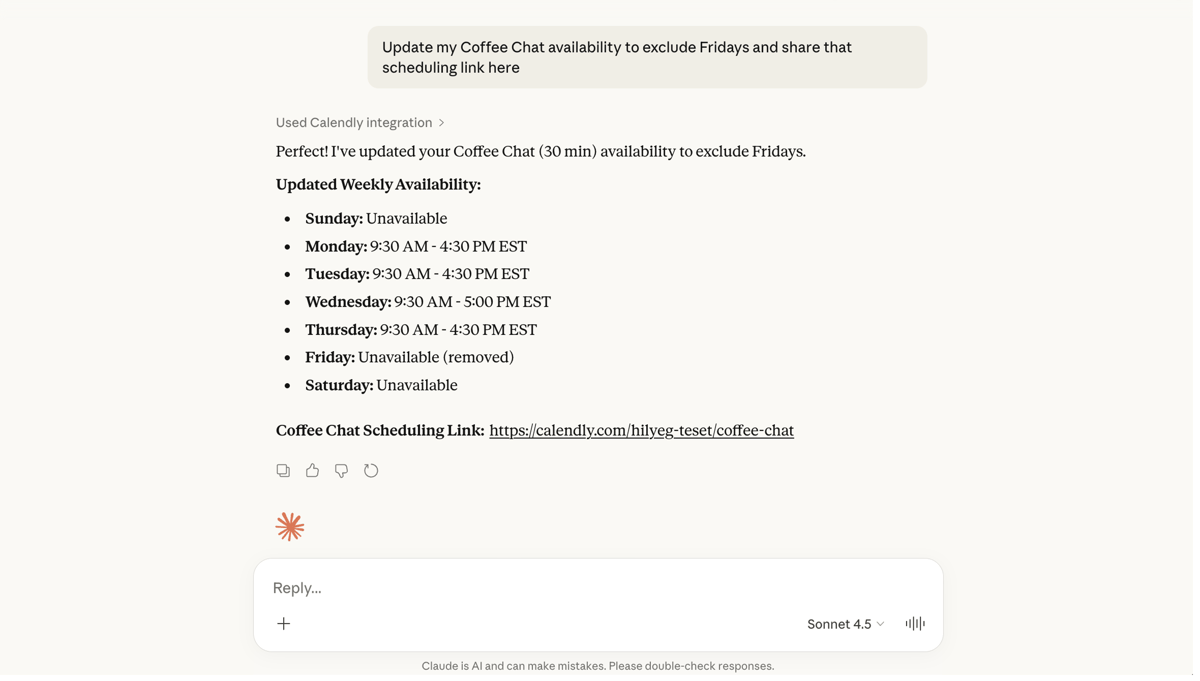
When you send a prompt, the AI tool sends your request to Calendly. Calendly then follows your scheduling rules and setup (like Event Types, availability, and existing meetings), performs the actions, and returns the result to the AI tool.
Example prompts
Here are some examples of what you can ask your AI tool to do in Calendly on your behalf:
- “Update my Coaching Session Event Type from 30 minutes to 60 minutes and switch the location to Zoom.”
- “Remove Fridays as available days for my Intro Call meeting.”
- “Find open slots for my Coffee Chat meeting next week.”
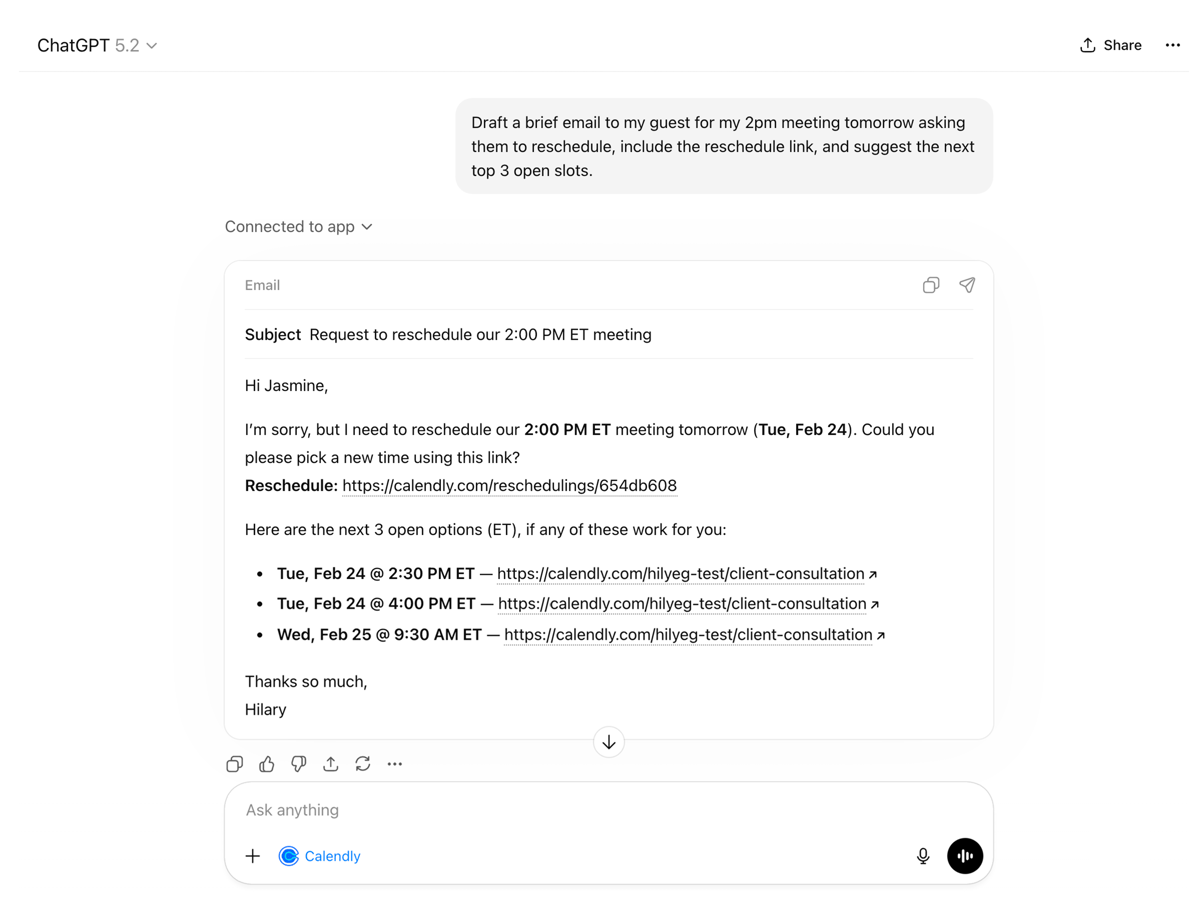
- “What is my rescheduling link for tomorrow’s meeting?”
- “Cancel my Monday 8 a.m. meeting.”
- “Create a single-use link for a 30-minute meeting.”
- “Book my one-hour Training Session meeting with jasmine@email.com for Tuesday at 2 p.m.”
You can also ask your AI tool to handle additional steps that make scheduling easier. For example: “Draft an email that includes a rescheduling link for my 3 p.m. meeting and offer my next top 3 slots.”
How to connect Calendly with ChatGPT
Getting started with the Calendly plugin for ChatGPT takes just a few clicks. Here’s how.
Connect Calendly to ChatGPT
- Open ChatGPT in your browser
- Select Plugins from the sidebar
- Search for and select Calendly
- Select Connect
- (Optional) Turn on Reference memories and chats to personalize responses using relevant conversations and memories
- Select Sign in with Calendly
- In the Calendly window that opens, sign in if prompted
- Select Approve to grant access
You’ll be taken back to ChatGPT once the connection is complete.
Use Calendly in ChatGPT
- Start a new chat in ChatGPT
- Click the + icon next to the message input
- Select More and choose Calendly
How to connect Calendly with Claude
With the Calendly connector for Claude, you can manage meetings and availability right from Claude. No custom MCP connection necessary.
Here’s how to add the connector:
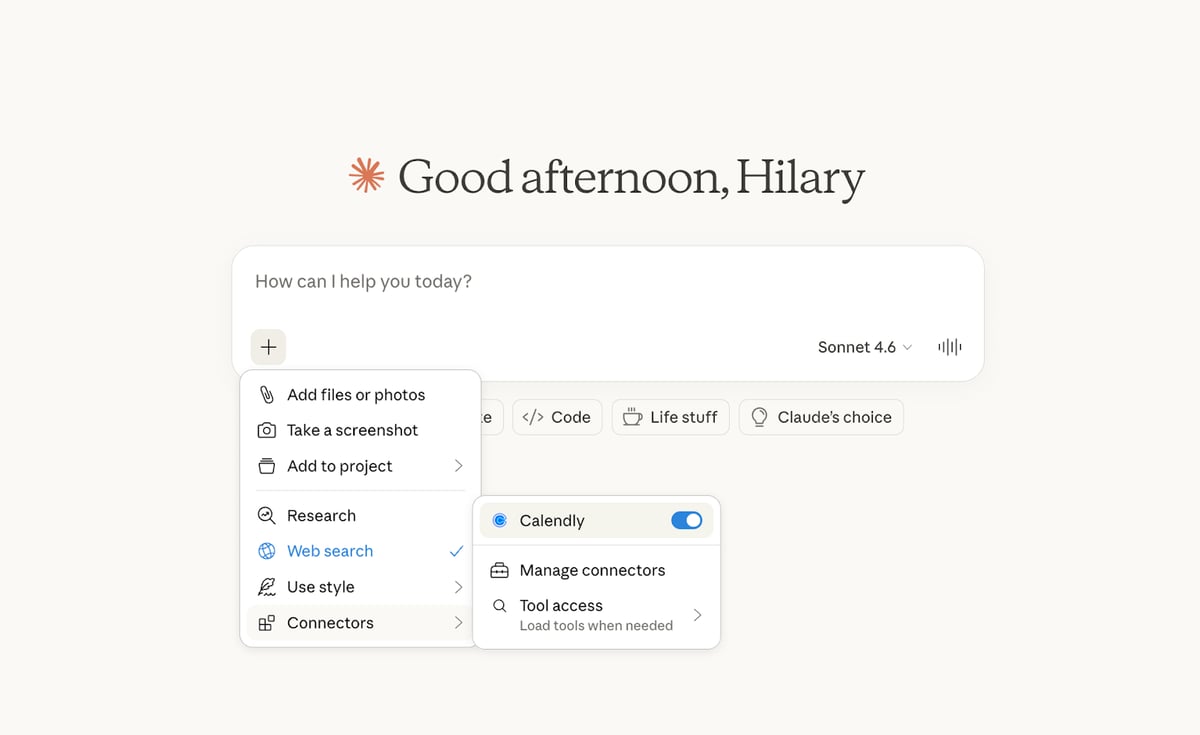
- From your Claude account, click Customize
- Click Connect your tools to view available connectors
- Search for Calendly
- Click Connect
- When prompted, approve access to connect Claude to Calendly
From there, start a new chat and make sure your Calendly connector is enabled.
How to connect Calendly with Muse
Getting started with the Calendly connector for Muse takes just a few clicks. Here’s how.
Connect Calendly to Muse
- Open Muse in your browser
- Go to Settings then select Connectors
- Search for and select Calendly
- Select Connect
- Select Connect again to sign in with Calendly
- In the Calendly window that opens, sign in if prompted.
- Select Approve to grant access.
You’ll be taken back to Muse once the connection is comple
Use Calendly in Muse
After connecting, you can ask Muse about your schedule and take actions directly in the conversation.
How to connect Calendly with other AI tools
If your AI tool supports MCP, you can connect it to Calendly using the MCP server URL.
- In your AI tool, look for an option to add an MCP server or custom connector
- Paste the server URL: https://mcp.calendly.com/
- Follow your AI tool’s instructions to complete setup.
For a full step-by-step tutorial and FAQs, visit our Help Center.
For developers building with AI
The Calendly MCP server gives developers a hosted, permissioned way to bring Calendly scheduling actions into AI-powered apps and workflows. Use it to power in-product copilots, automate scheduling within your platform, or connect Calendly to the AI tools your users already rely on. Get started with the Developer Integration Guide.
Check out our API blog post for more ways to build with Calendly.
Let your favorite AI tool handle scheduling
You already use tools like ChatGPT, Claude, and Muse to help you do more with less. Manage scheduling and meetings without leaving the flow of conversation by connecting Calendly to your AI tool.
- Learn more and get started with Calendly MCP
- Add the Calendly connector to Claude
- Add the Calendly plugin to ChatGPT
- Add the Calendly connector to Muse
Get started with Calendly
Ready to make meetings easier than ever?